
- ❓ Can a Wallet Show Wrong Balance Monero?
- 🔍 How to View Monero Wallet Balance & Verify TXID (Without Syncing)
- Wallet not fully synchronized (The most common)
- ⚙️ How to Resync Your Monero Wallet (GUI Method)
- ⚡ Execute Your Strategy: Swap XMR Without Syncing Nodes
- When to Worry About Lost Funds
- Best Practices for Monero Transactions
- Conclusion
- FAQ
You’ve just completed a transaction. The blockchain confirms it; the sender shows it as done. Yet, when you open your wallet, your Monero balance is not showing.
Stop. Don’t panic. Your XMR is almost certainly safe on the blockchain. Because Monero is a privacy coin, your wallet doesn’t just “see” your balance; it has to cryptographically scan every block to find it.
In April 2026, with the increased network load from the latest Seraphis upgrades, sync delays are more common than ever.
📊 Quick Fix Matrix: Monero Balance Not Showing After Transaction
| The Problem | Why It Happens | The Immediate Fix |
| Incomplete Sync | Your wallet hasn’t downloaded the latest blockchain blocks yet. | Leave the wallet open. Check the status bar at the bottom and wait for it to hit “100% Synchronized.” |
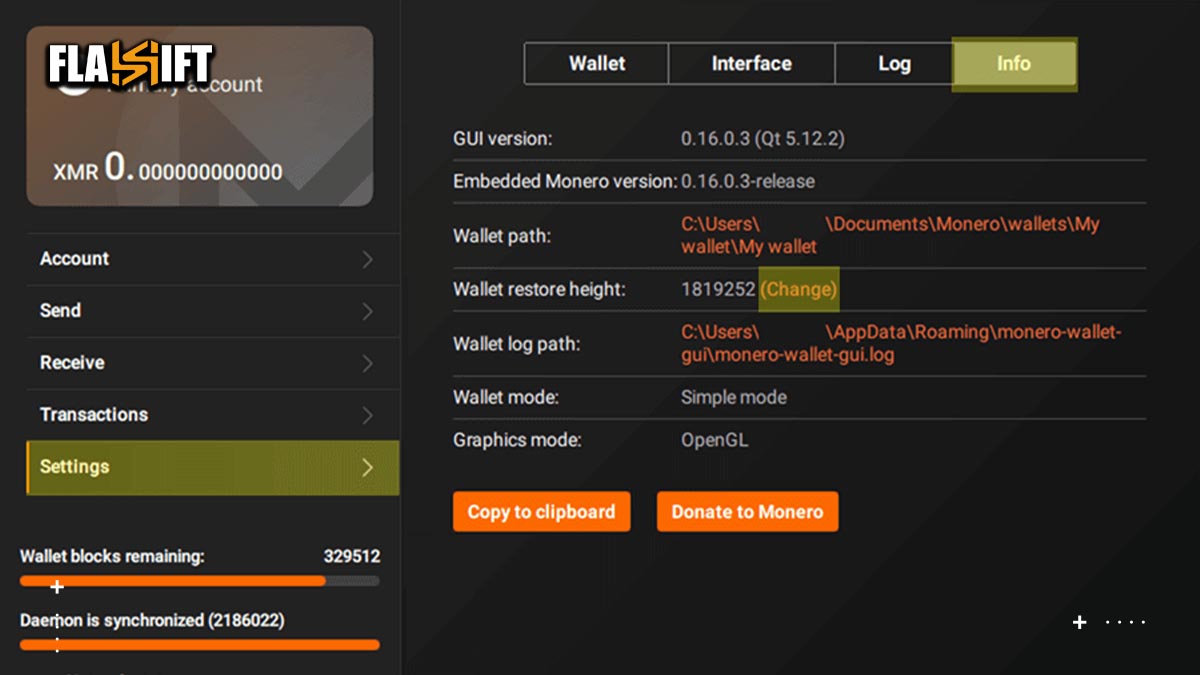
| Wrong Restore Height | You told the wallet to start scanning after the date of your transaction. | Go to Settings -> Wallet Info. Change the Restore Height to a date/block before you received the XMR, and rescan. |
| Dead Remote Node | The remote node you are connected to is offline or stuck on an old block. | Go to Settings -> Node. Switch from your current remote node to a new, highly-rated public node. |
| Monero Unconfirmed Balance | The transaction is broadcasted but technically still locked. | Wait ~20 minutes. Once it hits 10 confirmations, the balance will move from “Unconfirmed” to “Available.” |
❓ Can a Wallet Show Wrong Balance Monero?
Yes. A Monero wallet will absolutely show a “wrong” or zero balance if it is out of sync with the network.
Unlike transparent ledgers (like Bitcoin) where a block explorer instantly reveals your exact holdings, a Monero wallet acts as a cryptographic scanner. If your wallet stops scanning at block 3,000,000, but your transaction was included in block 3,000,050, your wallet will confidently (and incorrectly) display a zero balance. The funds are secure on the blockchain; your software simply has not scanned the correct block yet.
🔍 How to View Monero Wallet Balance & Verify TXID (Without Syncing)
If you cannot wait for your local node to synchronize and need an instant monero wallet balance check, you can manually verify your transaction using a Monero block explorer.
Because XMR is private by default, you cannot simply paste your wallet address into a public search bar. To execute a proper xmr wallet check, you need three components:
- The Transaction ID (TXID).
- Your Public Monero Wallet Address.
- Your Private View Key (Keep this secure; only paste it into trusted, locally-run or highly reputable block explorers).
By entering these details into the explorer’s “Decode” or “Verify” tool, the network will cryptographically prove whether the funds successfully arrived at your address, independent of your local wallet’s sync status.
Wallet not fully synchronized (The most common)
One of the main reasons your Monero balance is not showing after a transaction is that your wallet hasn’t fully synchronized with the blockchain. Monero wallets must connect to a node and scan every new block to detect incoming transactions. If the synchronization is incomplete, your funds may not appear even though the transaction has been confirmed.
Step-by-step solution:
- Open your wallet (GUI or CLI) and check the synchronization status at the bottom or in the status bar.
- Make sure the wallet and daemon (if you’re using a local one) have both reached the latest block height.
- If you’re connected to a remote node, confirm that it’s reliable and fully synced.
- Try using the “Rescan wallet balance” option to force the wallet to refresh.
- Once the sync is complete, your XMR balance not showing issue should resolve automatically.
Incorrect restore height; a frequent reason your XMR balance not showing
Another common reason your Monero balance not showing in wallet is setting the wrong restore height when creating or restoring the wallet. The restore height tells the wallet from which block to start scanning the blockchain. If you set it too high — past the block where your transaction was recorded — your wallet will skip scanning that transaction entirely.
Step-by-step solution:
- Go to Settings → Wallet info (or similar) and check your wallet’s restore height.
- Set it to a block number that’s earlier than the date your transaction occurred.
- Apply the change and allow the wallet to rescan the blockchain.
- Wait until the rescan completes; depending on the height, this could take from minutes to hours.
- Once the scan is finished, your Monero balance not showing problem should disappear.
Using an unreliable or outdated remote node
Sometimes your Monero balance is not showing because you’re connected to an unreliable or unsynced remote node. If the node you use to connect your wallet is lagging behind or temporarily offline, it can’t provide your wallet with the latest transaction data.
Step-by-step solution:
- Check which node your wallet is using under the connection settings.
- If it’s a remote node, switch to a more stable or trusted one from the list, or manually add a known good node.
- After switching, refresh or resync the wallet to update your data.
- If you can, consider running your own local node — it’s the most reliable way to avoid the Monero balance not showing problem.
- Once the new node is synced, your balance should appear correctly.
Outdated wallet software
If your wallet software is outdated, it may not be compatible with the latest Monero network updates. This can cause synchronization problems or missing transaction data, leading to your XMR balance not showing even though your funds are actually safe.
Step-by-step solution:
- Check the wallet version you’re using and compare it with the latest version available on the official Monero website.
- If it’s outdated, download the newest release from the official source (never from third-party sites).
- After updating, open your wallet and allow it to fully sync with the network.
- If the balance still doesn’t appear, restore your wallet from your 25-word seed using the correct restore height.
- After syncing, your Monero balance not showing issue should be resolved.
Transaction still confirming or funds not yet unlocked
Even after a transaction has been broadcast, it may take some time before the funds become available. In Monero, this period is called the unlock time. Until your transaction reaches the required number of confirmations, your Monero balance is not showing because the funds are technically still locked.
Step-by-step solution:
- Open your wallet’s Transfers tab and check the transaction’s confirmation status.
- If it’s still confirming, wait a bit longer — confirmations can take from a few minutes to an hour.
- Once the required confirmations are reached, your XMR balance not showing issue should automatically fix itself.
- If the wallet is synced but still doesn’t show your funds, try refreshing or rescanning.
- If you suspect a problem, verify the TXID on a Monero block explorer (without exposing your private info).
⚙️ How to Resync Your Monero Wallet (GUI Method)
If your node is fully synced but your funds remain hidden, you must force a manual rescan through your wallet interface.
- Check Restore Height: A monero restore height wrong balance error is the most common issue for recovered wallets. Go to Settings -> Info and ensure your restore height is set to a block number generated before your transaction date.
- Rescan Wallet Balance: Navigate to Settings -> Info in your GUI wallet and click Rescan wallet balance. This forces the software to re-check your spent and received outputs.
- Node Verification: If your remote node is lagging, go to Settings -> Node and switch to a different, reliable remote node. Allow the wallet to fully refresh.
⚡ Execute Your Strategy: Swap XMR Without Syncing Nodes
Managing native Monero wallets, dealing with daemon synchronizations, and waiting for block heights to catch up introduces severe execution fatigue. When you need to rebalance your portfolio, you cannot afford to wait hours for a wallet to sync.
🛡️ Sovereign Privacy Execution Terminal:
Flashift operates as a pure Chain Abstraction layer with Zero-Approval architecture. We never request you to connect a dApp wallet, sign smart contracts, or wait for local node synchronizations.
Instantly swap your XMR for USDT, BTC, or PAXG strictly via an isolated, single-use deposit address. Our AI routing engine performs continuous post-trade analysis to automatically blacklist providers with predatory spreads, ensuring you receive the exact quoted rate without hidden slippage. Concurrently, our 24/7 support desk actively monitors live network flows to guarantee instant settlement directly to your private cold storage.
When to Worry About Lost Funds
In most cases, if your wallet shows a zero balance after a confirmed transaction, there’s no reason to panic. The Monero network itself is extremely reliable — what often looks like missing coins is simply a display or sync issue on the wallet side. Still, there are a few rare cases where you should take the situation seriously.
- The transaction never appeared on the blockchain.
If you’ve checked your TXID on a block explorer and there’s no record of the transfer, it’s possible the transaction failed or was never broadcast. In this case, contact the sender or the exchange immediately.
- You restored from the wrong seed phrase.
It happens. Users sometimes restore a wallet using an older backup or incorrect mnemonic. If your Monero balance not showing after a full rescan and correct restore height, double-check the seed words carefully.
- Funds sent to the wrong address.
Due to Monero’s privacy model, once coins are sent to another valid address, they cannot be retrieved. Always verify the first and last few characters of the recipient address before sending.
- Corrupted or outdated wallet data.
A damaged wallet file or an outdated version may fail to read your balance correctly. Reinstalling or restoring from your seed usually fixes it, but if the issue persists, consult official Monero support channels or experienced community members.
Best Practices for Monero Transactions
Most issues related to the Monero balance not showing can be prevented with a few disciplined habits. These practices keep your wallet healthy, transactions smooth, and your peace of mind intact.
- Keep your wallet and node up to date.
Always use the latest official Monero software. Updates often include network compatibility fixes, sync optimizations, and bug patches that prevent wallet-display problems.
- Verify transaction status after sending or receiving.
Check your transaction ID (TXID) on a Monero block explorer to confirm it’s visible and confirmed. This simple step avoids confusion later if your wallet doesn’t immediately reflect the new balance.
- Set an appropriate restore height.
When creating or restoring a wallet, choose a block height a few days before your expected transaction. This guarantees no block is skipped and reduces the risk of your Monero balance not showing correctly after recovery.
- Use reliable nodes.
If you prefer remote nodes, pick trusted, frequently updated ones. Better yet, run your own local node for maximum reliability and privacy.
- Maintain backups of your seed and keys.
Always store your 25-word seed and view/spend keys in secure offline locations. This ensures that even if your device fails or files are corrupted, your funds remain safe and recoverable.
Conclusion
When you don’t see your balance in your Monero wallet, it’s almost always a display or sync issue, not lost money. Because Monero works with stealth addresses and private view keys, the wallet needs to get “caught up” with the blockchain before your incoming funds show. Once you realign the wallet—by refreshing, rescanning, restoring from seed, or switching to a reliable node—the actual coins are very likely safe and just hidden until the process completes.
Still, if you just want a smoother, faster experience, no waiting for full node syncs or dealing with heavy setups, consider using Flashift. It provides a streamlined alternative for Monero transfers: no long sync times, no need to operate a local node, just send or receive quickly with minimal fuss. It won’t replace the full-node wallet in every scenario, but for ease, speed and simplicity it’s a solid option.
In the end, managing Monero confidently boils down to two things: knowing your seed is backed up, and understanding how sync works. With that foundation, you’re always in control. Whether you stick with the classic wallet process or move toward a quicker tool like Flashift, your XMR should be secure, visible—and yours.
FAQ
- I used a hardware wallet with Monero and now the balance is missing. Is it gone?
Not at all. If you used a hardware wallet (like a ledger or similar) and your XMR shows a zero balance, it’s almost certainly a sync or configuration issue—not a loss of funds. The funds are still on the blockchain, but your wallet isn’t seeing them yet because it hasn’t scanned the right blocks, or because your wallet’s restore-height was set too high. Try refreshing, checking the restore height, or pointing the wallet to a reliable node. Once it’s correctly aligned, your balance should re-appear.
- I see the transaction ID (TXID) on a block explorer, but the wallet still shows “0 XMR.” Should I worry that the funds never arrived?
No. This is an important nuance. Seeing the TXID means the transaction is on the blockchain. Your wallet not showing the funds usually means the wallet hasn’t detected the relevant outputs yet (because it hasn’t scanned down to the block where they appeared). So the issue isn’t the transaction—it’s the scanning. Make sure your wallet is fully synced, check the block height, and if necessary, trigger a rescan from a slightly earlier block. Your balance will likely show once the wallet catches up.
- Could switching between remote and local nodes cause my XMR balance not showing?
Yes, absolutely. If you’re using a remote node that’s behind, overloaded or misconfigured, your wallet may claim it’s “synchronized” when it really isn’t. This discrepancy can hide your actual balance. If you switch to a well-maintained remote node, or even better run a local node, you improve your chances that the wallet sees the correct blockchain data and updates your balance properly.
- I restored my wallet from seed, set my restore height, but the wallet still shows no balance. What did I miss?
You might be dealing with a subtle error: your wallet’s restore height might still be too late (after your incoming transaction block) or too early and the wallet is overwhelmed scanning irrelevant blocks. The sweet spot is setting the restore height just before the earliest expected transaction-block. Also ensure you used the exact correct seed, and that your wallet version is up to date. If you’ve done all that, a full rescan of the blockchain is probably the next step.
- After a large transfer, my balance shows but I can’t send my XMR yet. Does that mean it’s locked or missing?
Not missing; likely “locked” or waiting. Remember, even though the blockchain confirms the transaction, the wallet may still show your funds as “unlocked” or not yet spendable until certain conditions are met (like confirmations or protocol specific delays). Your balance not showing or being unusable doesn’t automatically mean it’s missing—just that the wallet hasn’t yet processed or “activated” those outputs for spending. Once the wallet finishes scanning and the unlock time has passed, things will proceed normally.